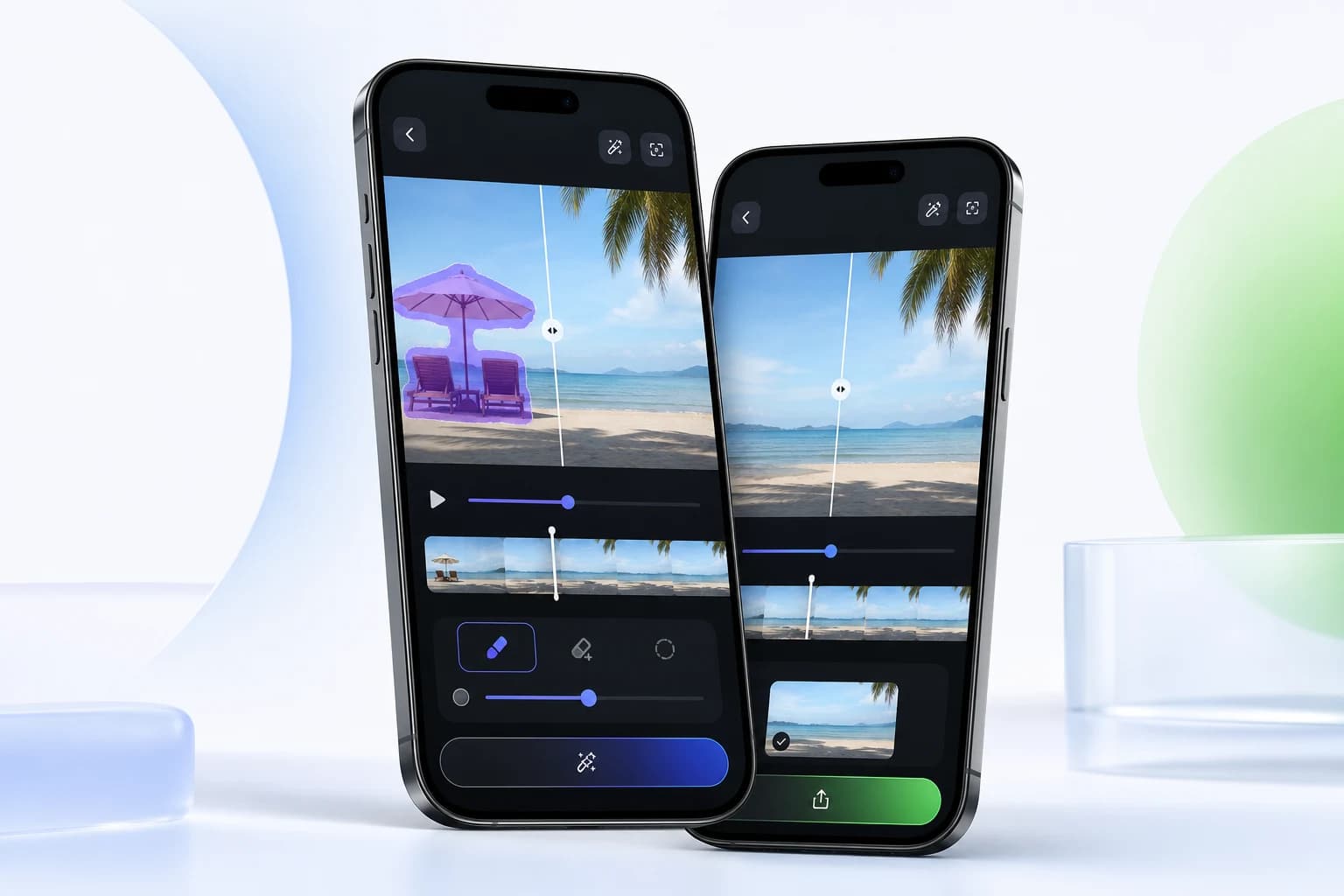
Before and after proof
Video enhancement examples for creators
Explore common video quality enhancement use cases for reels, tutorials, ads, and mobile clips.
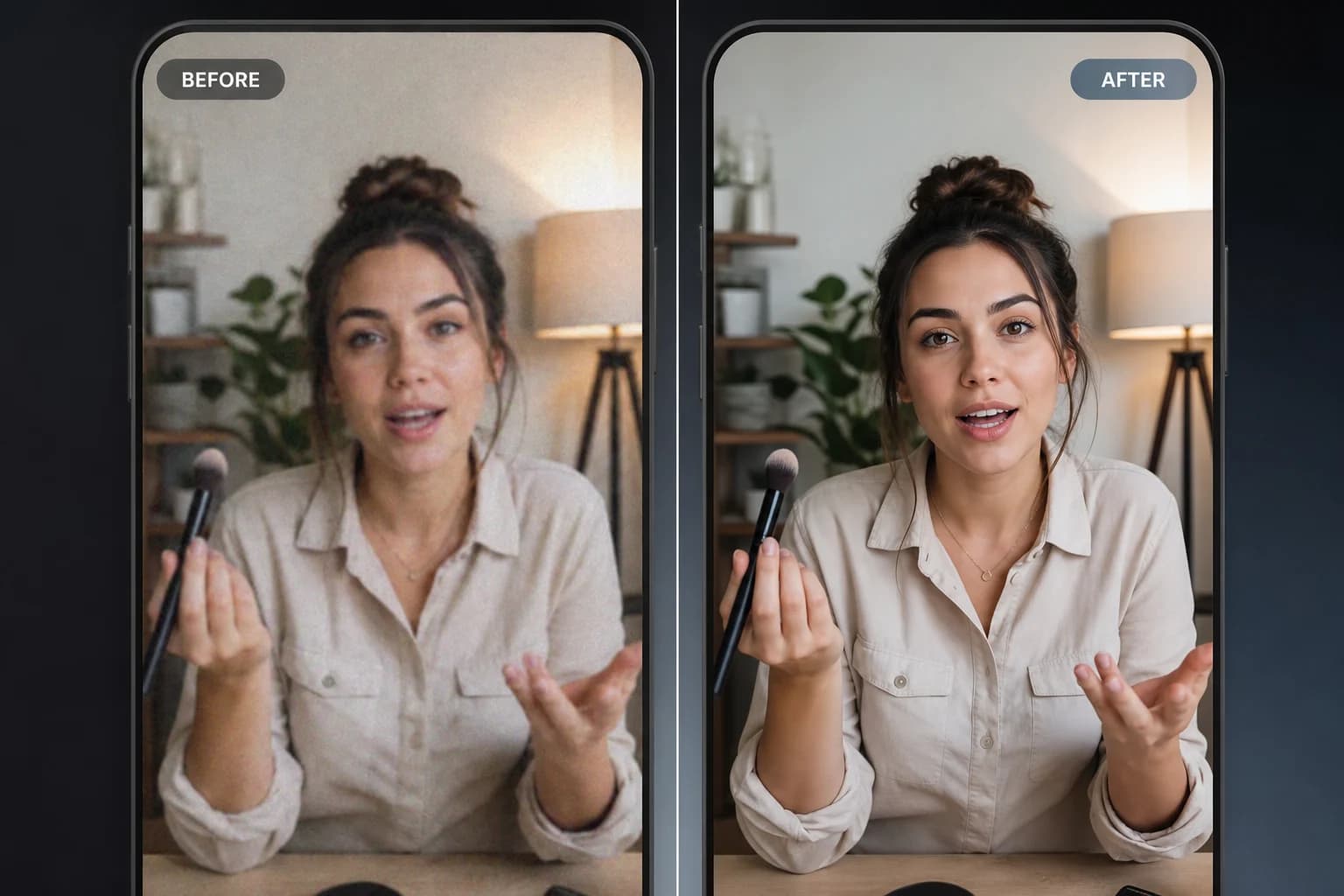
Gallery
What this workflow can show.
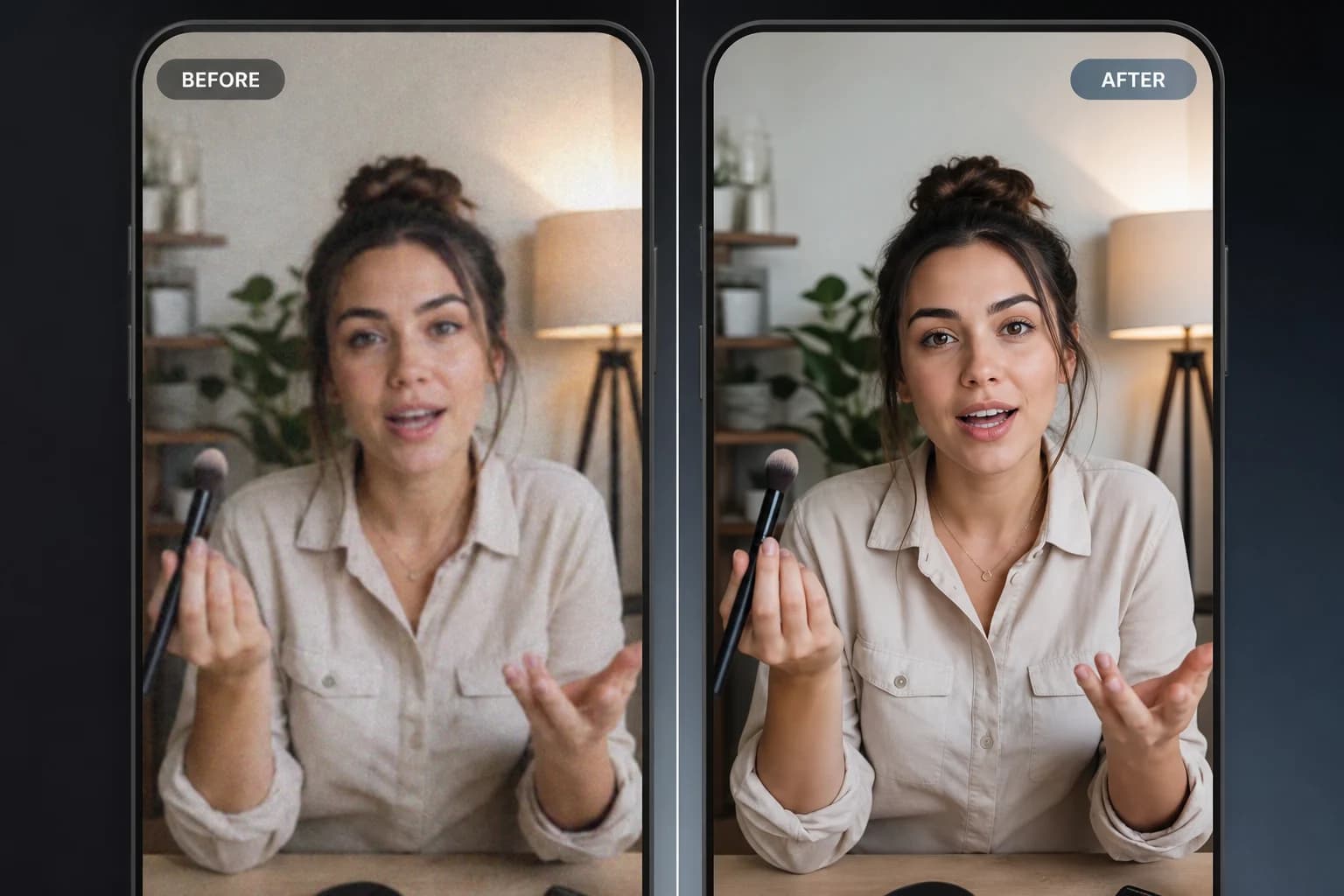
Example 1
A focused mobile edit preview with clean, export-ready results.
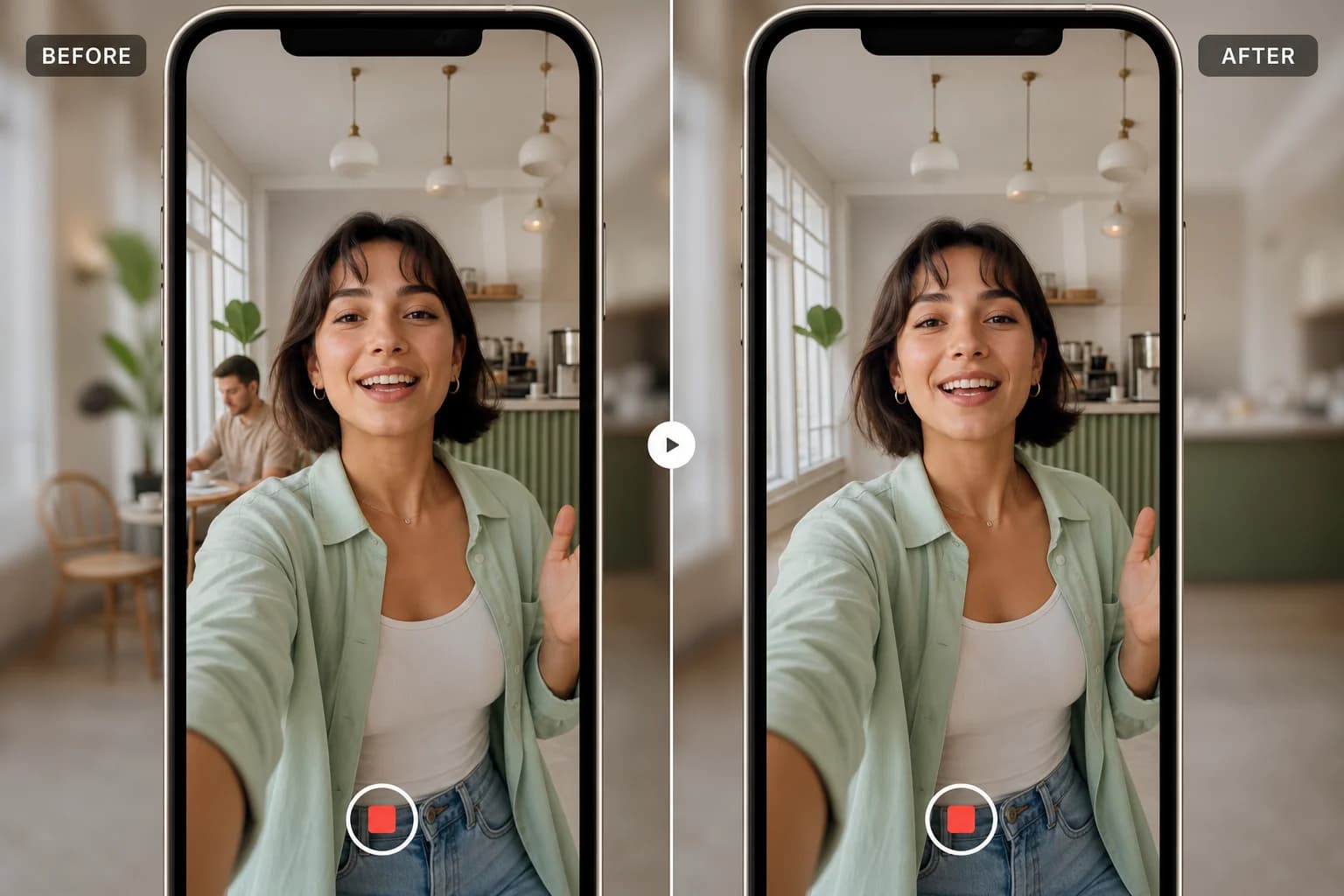
Example 2
A focused mobile edit preview with clean, export-ready results.
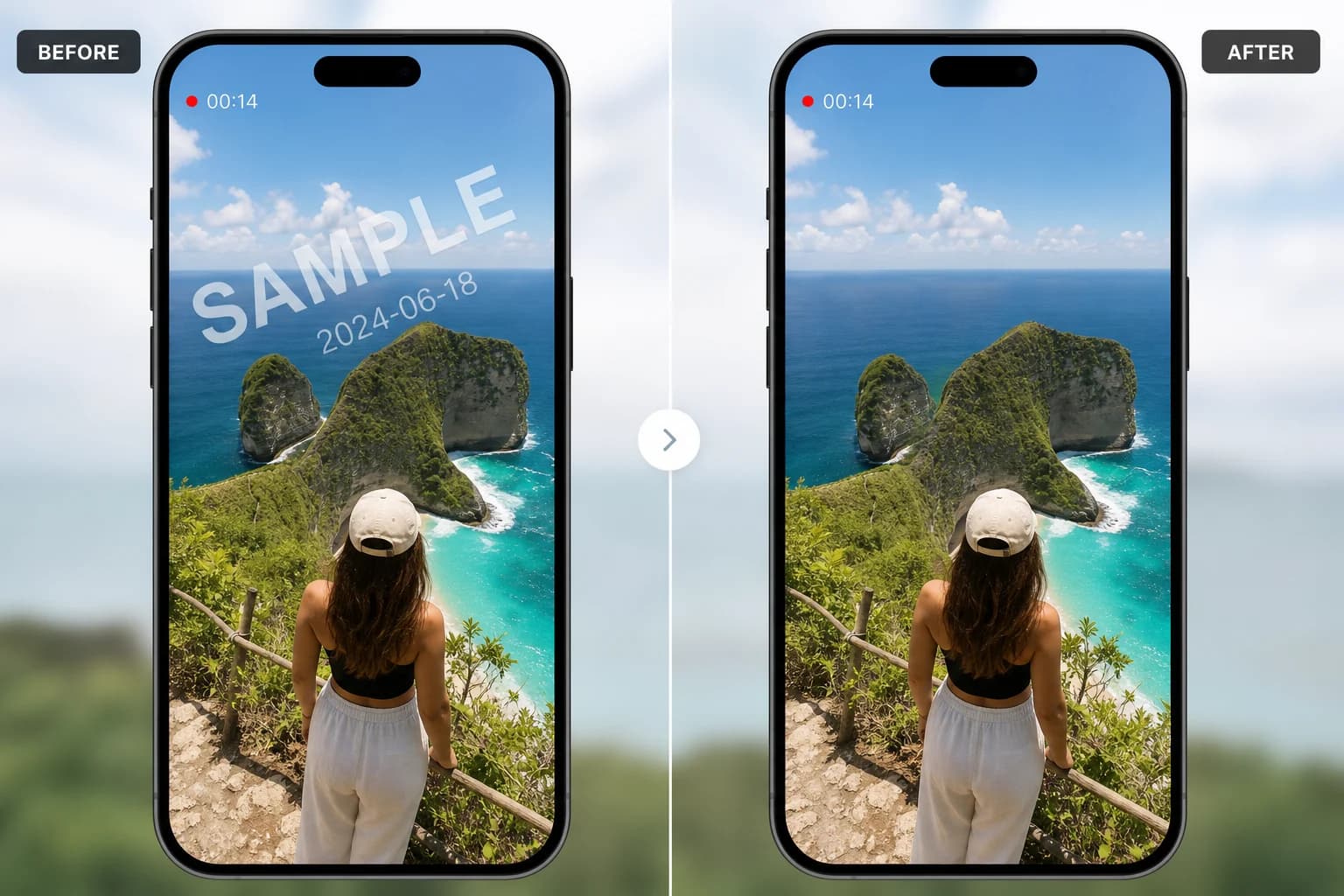
Example 3
A focused mobile edit preview with clean, export-ready results.
Improve social clips
Clean tutorial footage
Prepare sharper promo videos
How to judge results
A cleaner edit should hold up after export.
These examples focus on practical creator workflows: removing distractions, preparing clips for social posts, and improving footage without rebuilding the whole edit. The best result keeps the original frame, preserves motion, and avoids drawing attention to the corrected area.
Start with owned footage
Use Video Eraser on videos you own or have permission to edit, especially when removing logos, timestamps, or background distractions.
Select a tight area
Brush only the object or mark that needs cleanup. A precise selection gives the AI more surrounding detail to reconstruct naturally.
Preview before publishing
Review motion around the edited region, then export the version that looks stable across the full clip instead of only one frame.
Common questions for this example
Will this crop the video?
The workflow is designed to clean the selected region while keeping the original frame size, which is useful for reels, ads, and product clips.
When does AI cleanup work best?
It works best when the background around the removed area has enough texture or repeated detail for natural reconstruction.
Ready to edit
Try the same cleanup flow on your own clip.
Download Video Eraser for fast AI object removal, watermark cleanup, video enhancement, and creative transformations on mobile.
Download App